




Skip to content
View in the app

A better way to browse. Learn more.

GTAGames.nl - De Nederlandse Grand Theft Auto Community!

A full-screen app on your home screen with push notifications, badges and more.

To install this app on iOS and iPadOS
  1. Tap the Share icon in Safari
  2. Scroll the menu and tap Add to Home Screen.
  3. Tap Add in the top-right corner.
To install this app on Android
  1. Tap the 3-dot menu (⋮) in the top-right corner of the browser.
  2. Tap Add to Home screen or Install app.
  3. Confirm by tapping Install.

HVY Nightshark en 'Overtime Shootout' beschikbaar in GTA Online!


medium.5989c6973607f_hvynightshark.jpg.e


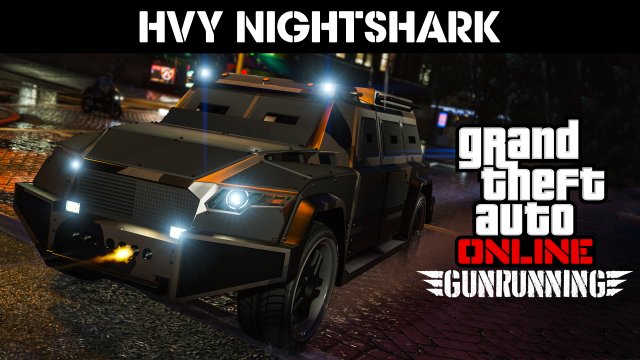
HVY Nightshark beschikbaar bij Warstock Cache and Carry

Heb jij als wapenhandelaar ook wel eens last van achtervolgers die je maar al te graag willen omleggen? Dan is het ideaal om een voertuig te hebben die klaar is om de confrontatie aan te gaan. De HVY Nightshark is zo'n voertuig. Deze snelle bak is aan de voorkant uitgerust met twee miniguns in de bumper en kan je vijanden zo dus de stuipen op het lijf jagen. De Nightshark is te koop voor $1.245.000 bij Warstock Cache and Carry.


medium.5989c69412092_overtimeshootout.pn


'Overtime Shootout' Adversary Mode

Er is ook een nieuwe Adversary Mode beschikbaar, 'Overtime Shootout'. Deze nieuwe mode heeft veel weg van de recent uitgebrachte 'Rumble' mode. De spelers strijden in twee teams tegen elkaar om scoreplatforms te bereiken in de Ruiner 2000. Wat anders is aan 'Overtime Shootout' tegenover 'Rumble' is dat de spelers een voor een de schans af gaan en dus rustig kunnen landen. 


Bonussen en kortingen

Een nieuwe week, nieuwe bonussen en kortingen. Bekijk ze hier


Bron: Rockstar Newswire


User Feedback

Recommended Comments

TryX Maffia baas

TryX

Leden

Weer een bullshit auto.. wat is de meerwaarde t.o.v de andere gepanterse auto's? De 2 guns aan de voorzijde?

Bassieboy35 Legendary Godfather

Bassieboy35

Ereleden

De handling van dit voertuig is erg soepel en hij is ook nog eens extra snel volgens mij. 

Join the conversation

You can post now and register later. If you have an account, sign in now to post with your account.

Guest
Add a comment...

Account

Navigation

Search

Search

Configure browser push notifications

Chrome (Android)
  1. Tap the lock icon next to the address bar.
  2. Tap Permissions → Notifications.
  3. Adjust your preference.
Chrome (Desktop)
  1. Click the padlock icon in the address bar.
  2. Select Site settings.
  3. Find Notifications and adjust your preference.