



Skip to content
View in the app

A better way to browse. Learn more.

GTAGames.nl - De Nederlandse Grand Theft Auto Community!

A full-screen app on your home screen with push notifications, badges and more.

To install this app on iOS and iPadOS
  1. Tap the Share icon in Safari
  2. Scroll the menu and tap Add to Home Screen.
  3. Tap Add in the top-right corner.
To install this app on Android
  1. Tap the 3-dot menu (⋮) in the top-right corner of the browser.
  2. Tap Add to Home screen or Install app.
  3. Confirm by tapping Install.

Blog this, hoe kan je scrollen

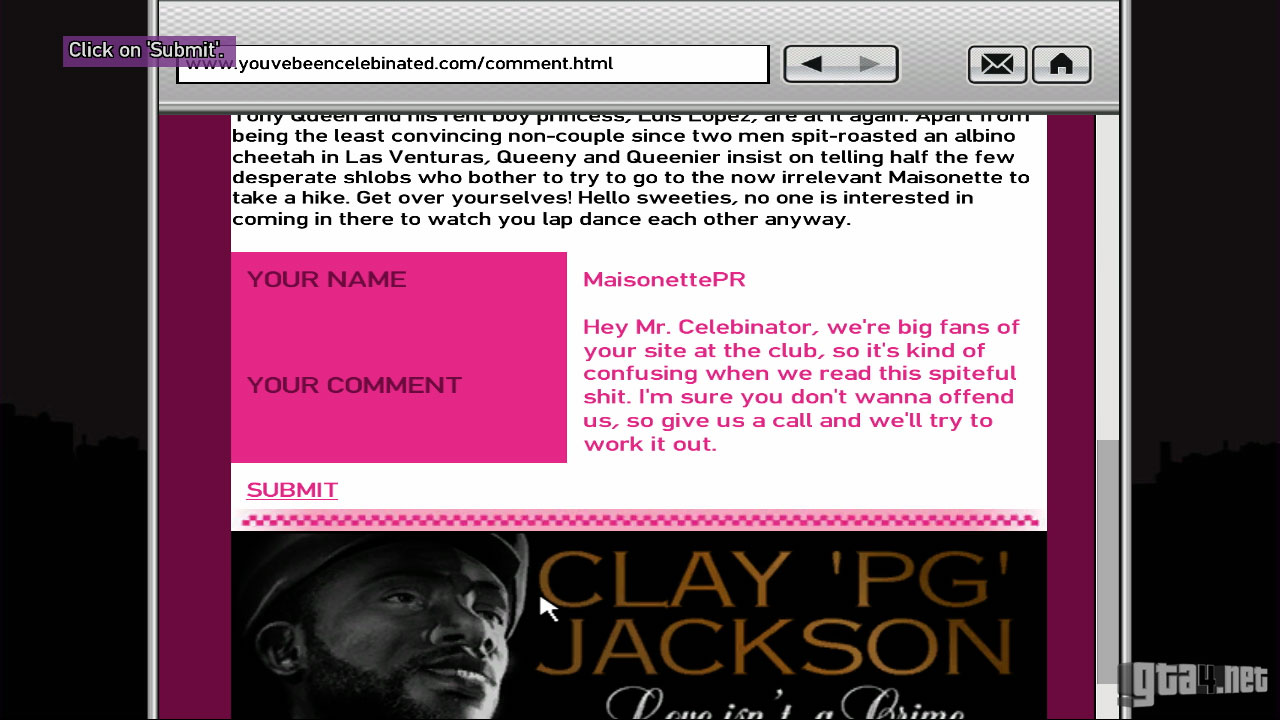
Ok tijd voor waarschijnlijk de domste vraag ooit maar ik kan in de missie blog this niet scrollen op de webpagina die ik bezoek via het internetcafe.

Ik heb echt alle knoppen van mijn controler al gebruikt, controler handleiding bekeken en ook via de vele missie video's op internet laten niet zien hoe je nu naar onderaan de pagina moet gaan. Hier moet je namelijk een reactie achterlaten en dit lukt nu dus niet.

Top als je me hier uit wilt helpen.

Gaat trouwensn om onderstaande pagina, zoals je aan de scroll balk rechts kan zien moet je stukje naar beneden scrollen 6442-gta-gay-tony-blog-this.jpg
Featured Replies

Als ik me niet vergis was dat gewoon met het pijltje naar beneden (PS3).

Edit @ hieronder: te lang geleden dat ik nog gePS3t heb. :puh:

Edited by Hanneswasco

Dat is normaal gewoon je rechter joystick naar beneden duwen. :puh:

  • 2 months later...

Wat End Of The Riot zei

Wat End Of The Riot zei

Dat hoef je niet te zeggen hoor.. :{

>>> Door Dutchy3010: De pot verwijt de ketel... Dit soort posts zijn ook alles behalve toegestaan. Je kunt altijd zijn post rapporteren, dit soort posts zijn minstens zo erg. Misschien zelfs wel erger!<<<

Join the conversation

You can post now and register later. If you have an account, sign in now to post with your account.

Guest
Reply to this topic...

Recently Browsing 0

  • No registered users viewing this page.

Account

Navigation

Search

Search

Configure browser push notifications

Chrome (Android)
  1. Tap the lock icon next to the address bar.
  2. Tap Permissions → Notifications.
  3. Adjust your preference.
Chrome (Desktop)
  1. Click the padlock icon in the address bar.
  2. Select Site settings.
  3. Find Notifications and adjust your preference.